Follow-along: Connect our MCP Server to an AI agent
🎯 Goal: Connect our MCP Server to Claude, our AI agent.
Open up Claude.
In the Application tool bar, open up Settings using
Cmd+,on MacOS.You can also access this through the main Claude menu dropdown.
Accessing settings on MacOS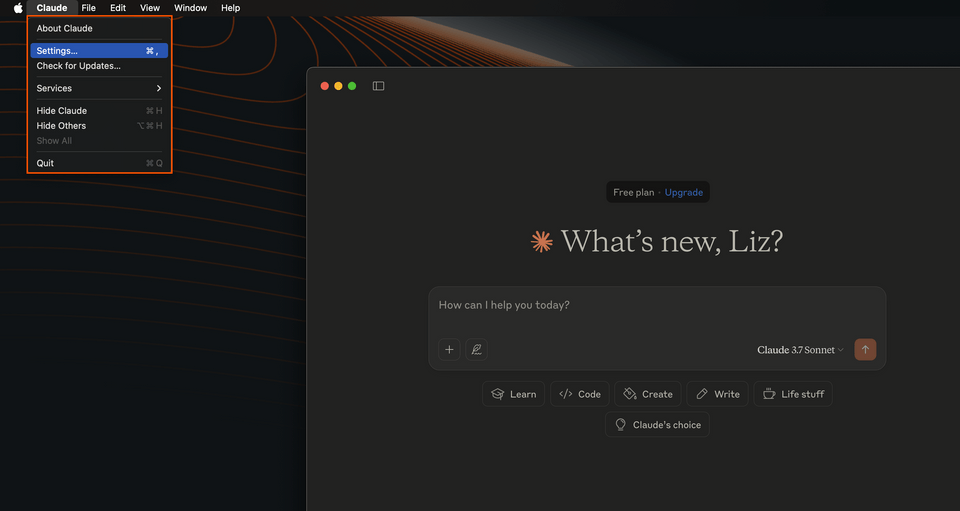
On Windows, click on the app's menu button in the top-left corner, then go to File, Settings.
Select the Developer option from the left-hand menu. In this window we'll see a short overview about Claude's compatibility with servers that use MCP.
Click Edit Config.
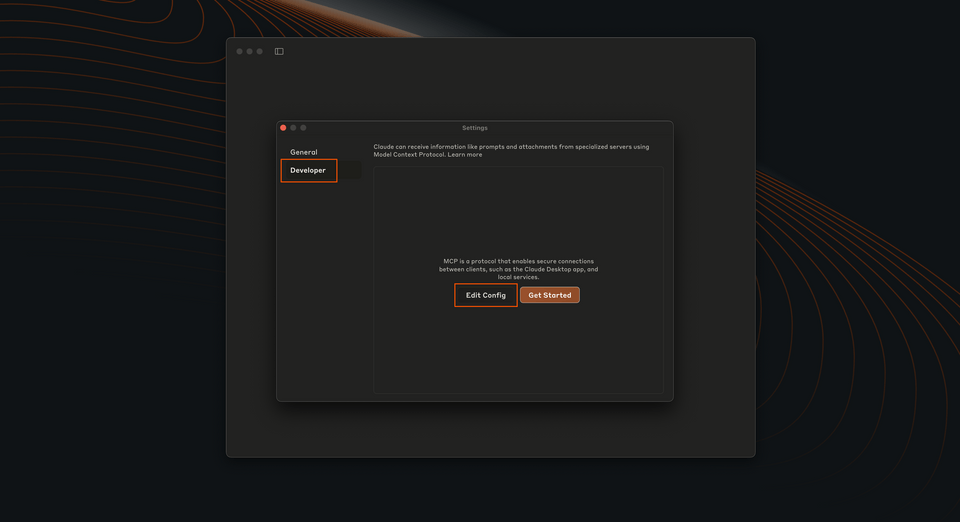
This will open a new file system window, opened to
claude_desktop_config.json. Open it in your code editor.If you're running a fresh installation of Claude, you'll probably see an empty config:
claude_desktop_config.json{}If you've played with MCP servers before, you'll probably have config defined here already. Copy your existing config and save it somewhere safe. Then, clear the file so we can start fresh and test our new MCP server in isolation.
Add the following config:
claude_desktop_config.json{"mcpServers": {"airlock-mcp": {"command": "npx","args": ["mcp-remote", "http://127.0.0.1:5000/mcp"]}}}We're naming our MCP server
airlock-mcpand giving Claude the command to run it using themcp-remotepackage.
Test the connection
Restart Claude.
Click on the Search & Tools button.
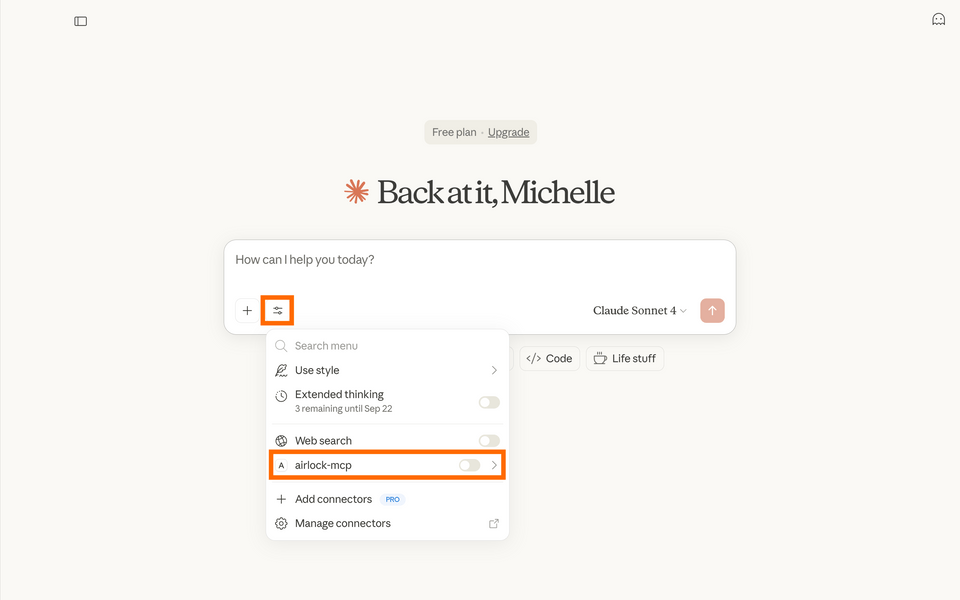
Toggle off the Web search to verify that Claude is only using the MCP server.
Ensure that the
airlock-mcpserver is toggled on.Try asking: "What are some available listings I can travel to?"
Claude will ask to use a particular tool. Expand to see what tool it is. Click Allow once.
Claude will return a response outlining the listings available!
Troubleshooting tips
- You may need to restart Claude a few times.
- Try stopping the MCP Inspector process.
- Uninstall older versions of Node.js (
nvm uninstallif you're using NVM). - Check the Claude logs for any errors.