Overview
In this module, we'll cover how to enable persisted queries and safelisting to ensure only approved operations are executed by the router.
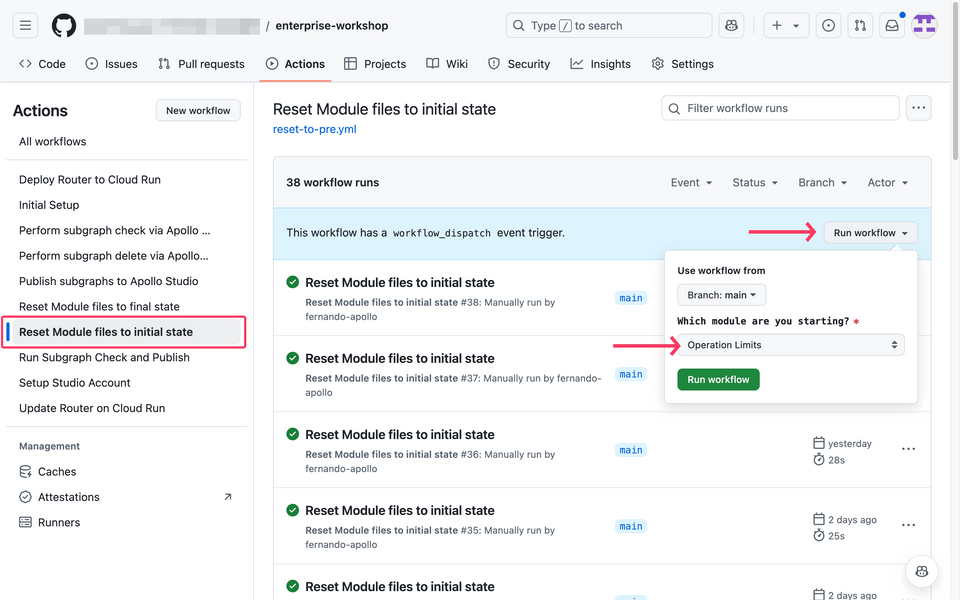
⚠️ Note on resetting the module to its final state: whilst it is possible to reset the module to its final state, there is still some manual work that needs to happen in Studio. We strongly suggest you follow the steps in the module to ensure you understand the changes made, even if you do choose to reset the module to its final state.
Persisted queries and safelisting
We want to lock down what type of queries can be executed against our graph so that only pre-approved queries can be run. To enable this, we need to turn on persisted queries with safelisting. Safelisting will allow us to provide a predefined list of allowed queries and then block any queries that are not on that list.
The current state
Jump over to Explorer in Studio and build a few queries. Use some of the examples we had in the previous modules.
As long as the query is valid and has the correct input parameters, we should get data back. This is because our graph currently accepts any query.
Now, let's enable persisted queries with safelisting and observe how this behavior changes.
Configure the router
Open up the
router/router.yamlfile in GitHub and click the ✏️ pencil icon in the upper right to edit the file.Add the following configuration:
router/router.yamlpersisted_queries:enabled: truesafelist:enabled: truerequire_id: falseapq:enabled: falseLet's go through what these changes to
router.yamlare doing. The first few lines are fairly straight-forward: we enable persisted queries and then we enable safelisting.require_idis a property that lets us decide if we need to send the query with the hash ID used in the persisted queries list. The GraphOS Router will not accept any GraphQL request that is sent with a body. In this case, that option is disabled.The final piece is to disable automatic persisted queries (
apq). You can learn more about this feature in the Apollo documentation.Commit your changes.
https://github.com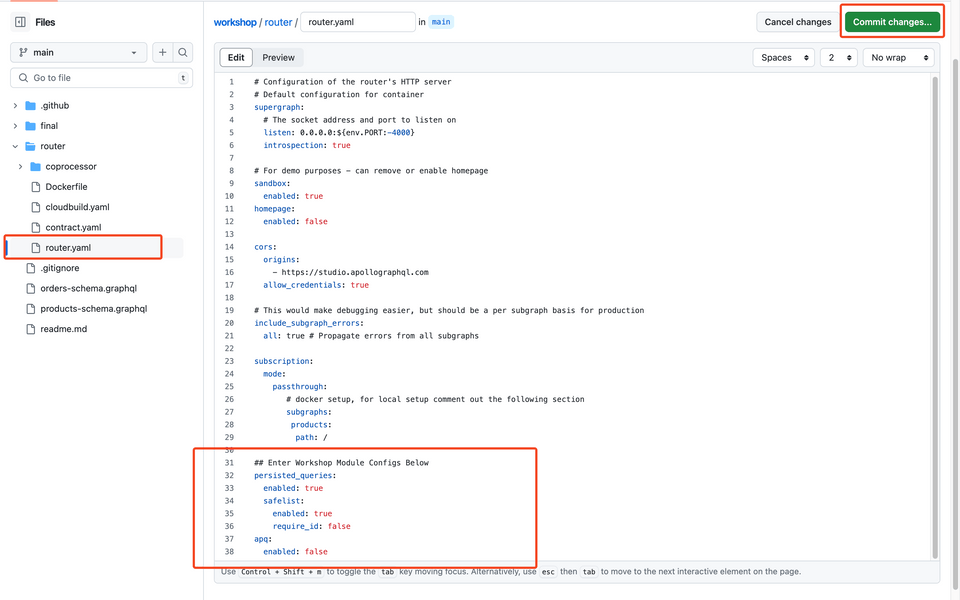
Make sure the CI/CD pipeline runs successfully before continuing on.
Configure persisted queries in the graph
We've got a few more configurations to do in the graph itself.
Navigate to Studio and open up ➡️ Settings view ➡️ This Graph ➡️ Configure Persisted Queries.
https://studio.apollographql.com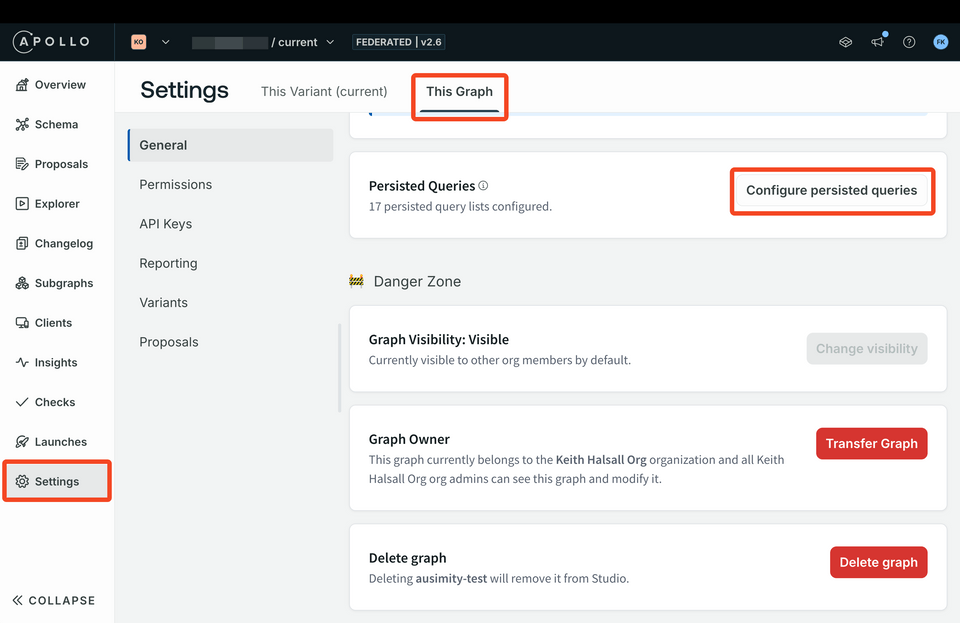
We can see that we already have a persisted query list loaded. To link that to our
currentvariant, click on the dropdown menu on the right-hand side and select the "Link and Unlink Variants" option.https://studio.apollographql.com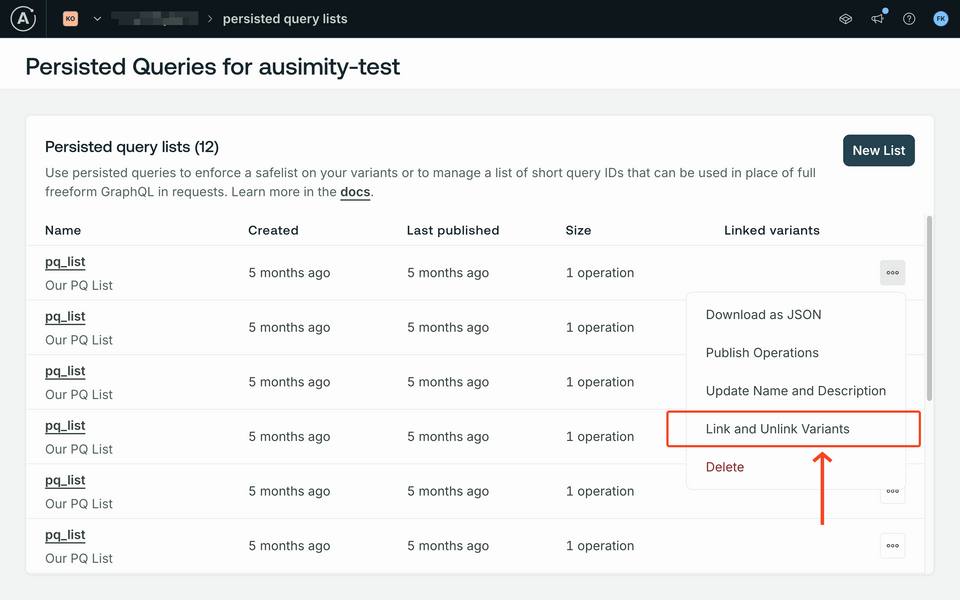
In the Link and Unlink Variants modal, select to link the "
current" variant and hit Save.https://studio.apollographql.com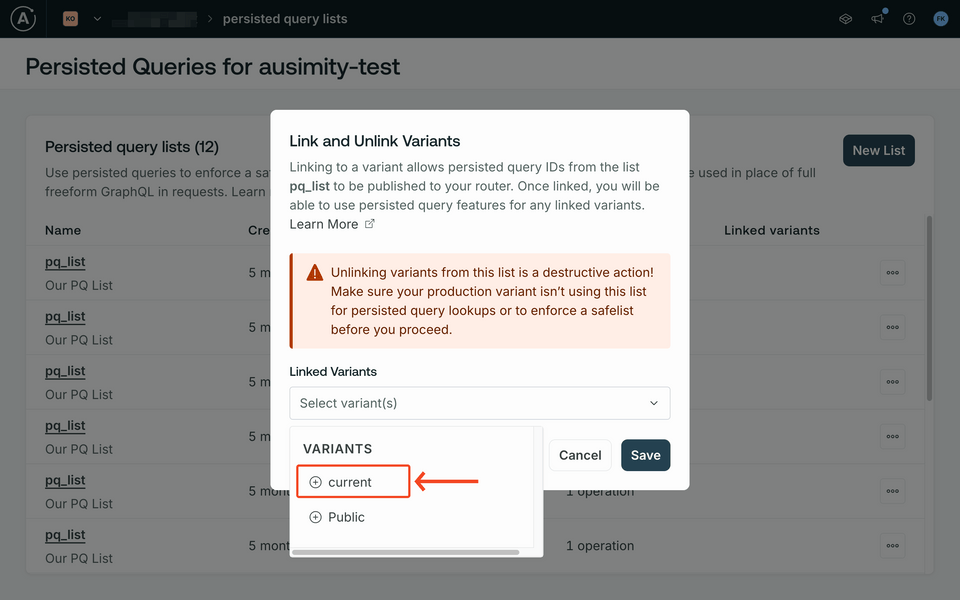
Now, back on the PQ page, it should show that the current variant is linked.
Click on the "
pq_list" to explore the list.https://studio.apollographql.com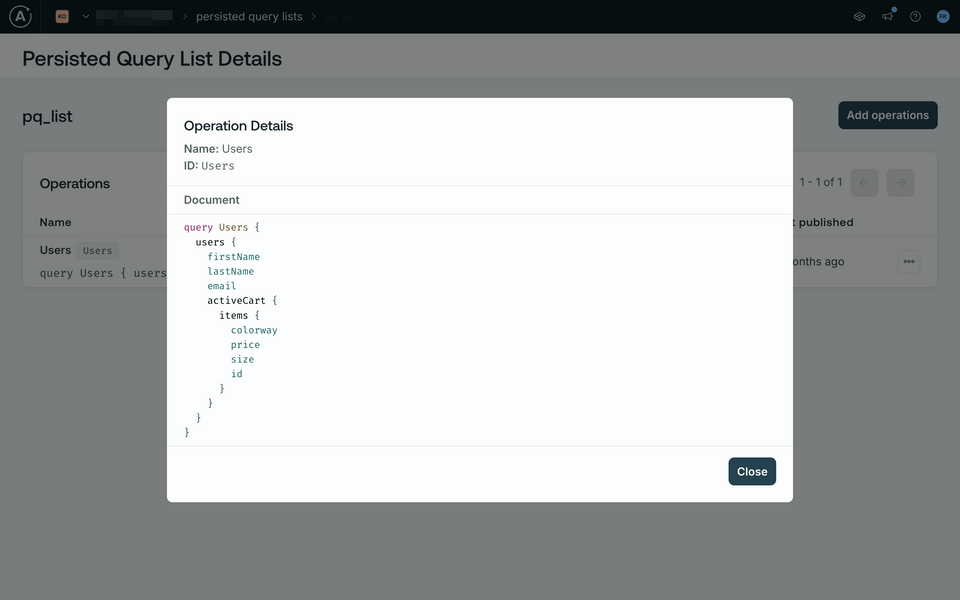
We can see that our persisted query list is quite small; we only have one operation for
users.
Check your work
Let's test out some queries to see how our router responds.
Head to Explorer to build out a simple query of your choice, and try to run that query. Your request should be denied, with an error similar to this:
{"errors": [{"message": "The operation body was not found in the persisted query safelist","extensions": {"code": "QUERY_NOT_IN_SAFELIST"}}]}We can see that random queries not on our PQ list are now denied!
Now let's run a query that is in our PQ list. Copy the
Usersoperation and run it:A query configured in our safelistquery Users {users {firstNamelastNameemailactiveCart {items {colorwaypricesizeid}}}}https://studio.apollographql.com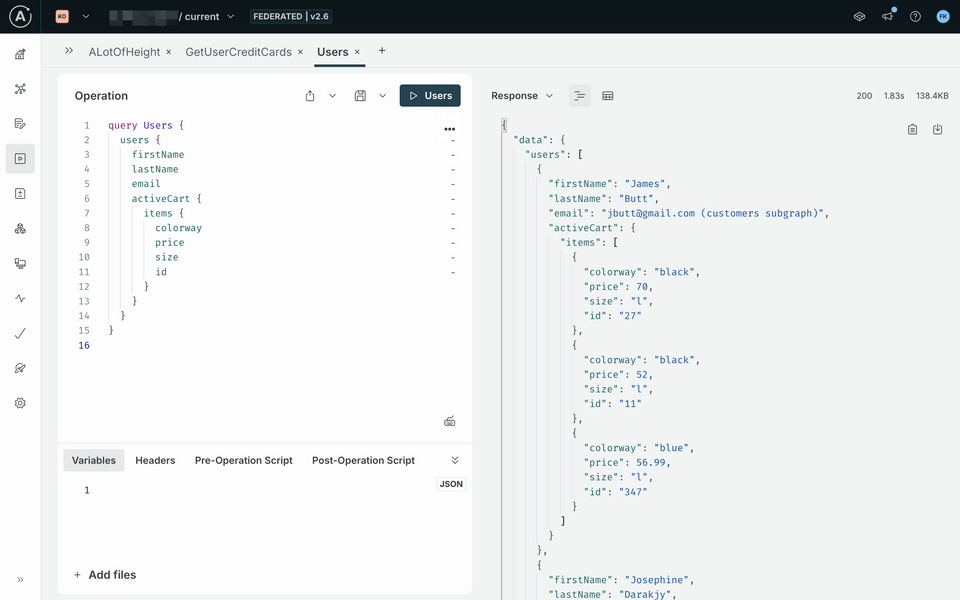
This query should succeed, and we can see that we have now locked down our graph so only pre-approved queries can be executed.
Reverting changes
For demo and testing purposes, to revert those changes, simply disable safelisting or remove the safelisting configuration from the router.yaml file. Alternatively, you can just reset the module to the initial state with a GitHub workflow - see the details at the top of the page.
In GitHub, open the
router/router.yamlfile and click the ✏️ pencil icon in the upper right corner.Remove the persisted queries safelisting option or set the
enabledflag forsafelisttofalse.router/router.yamlpersisted_queries:enabled: truesafelist:enabled: falserequire_id: falseapq:enabled: false
Up next
In this module, we've covered how we can protect our graph from unapproved queries using persisted queries and safelisting.
Now that we feel comfortable adding a layer of security to our graph, it's time to enable authentication and authorization.