Follow-along: Run the MCP server
Step 1: Configure the MCP server
Create a new file called
mcp-config.yamlin the root of the project.Add the following content to the file:
mcp-config.yamlendpoint: ${env.GRAPHQL_ENDPOINT:-https://flyby-edu-router.up.railway.app/}schema:source: localpath: schema.graphqlintrospection:introspect:enabled: trueexecute:enabled: truetransport:type: streamable_httpstateful_mode: false# This is for development. In production, you probably want to remove this!host_validation:enabled: falseoverrides:mutation_mode: "all"
This configures the MCP server to:
- Connect to the graph at the endpoint specified in the
endpointkey. - Reference a local schema file (
schema.graphql). - Enable introspection and execution of GraphQL operations.
- Use the streamable HTTP transport.
- Disable host validation for development purposes.
- Allow all mutations to run.
Step 2: Download the MCP server
If you haven't already, run ./install.sh. This script downloads the latest MCP server binary apollo-mcp-server using curl -sSL https://mcp.apollo.dev/download/nix/latest | sh.
Step 3: Run the MCP server
In your terminal, run the following command:
./start_mcp.sh
You can peek inside the script for the details, but this script will:
- Update
schema.graphqlwith the latest schema from the graph. - Run the
apollo-mcp-serverbinary with themcp-config.yamlfile. - Watch for changes to the
apps/folder (which we'll get into with MCP Apps) and restart the server as needed.
You should see logs in your terminal indicating that the MCP server is running and listening for requests.
Starting server...2026-04-14T17:05:47.104540Z INFO Apollo MCP Server v1.12.0 // (c) Apollo Graph, Inc. // Licensed under MIT2026-04-14T17:05:47.104960Z WARN No operations specified, falling back to introspection2026-04-14T17:05:47.108455Z INFO Starting MCP server in Streamable HTTP mode port=8000 address=127.0.0.1
Step 4: Inspect with MCP Jam
MCP Jam is a convenient way to test MCP locally, including the App Builder tab you will use after UI is wired up.
From a terminal (with the MCP server running), launch the inspector pointed at your local endpoint:
npx @mcpjam/inspector@latest --url http://localhost:8000/mcp --name "Flyby" --tab app-builderYour browser should automatically open to the MCP Jam inspector with the correct URL.
http://127.0.0.1:6274/#app-builder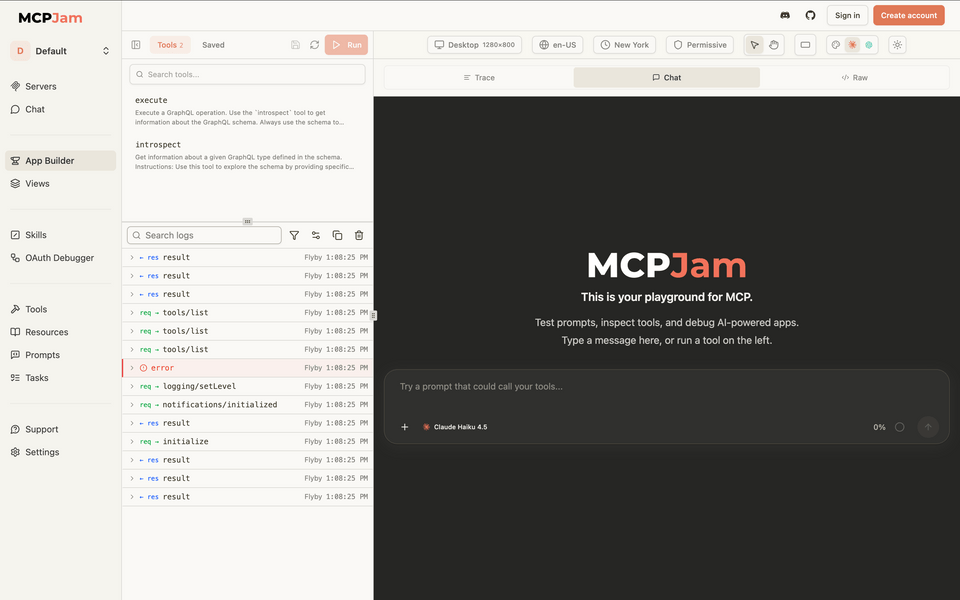
It will have two tools available based on our MCP configuration:
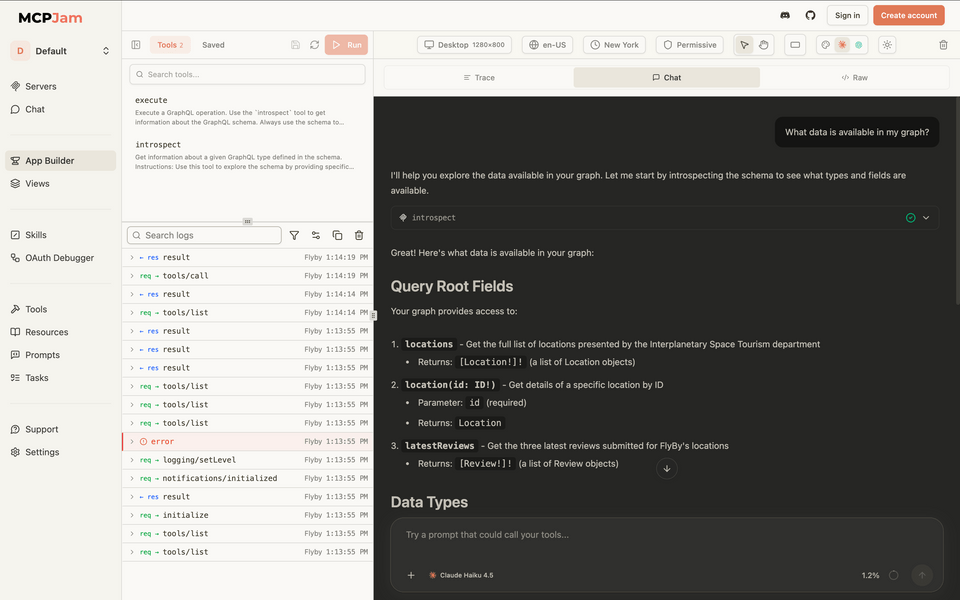
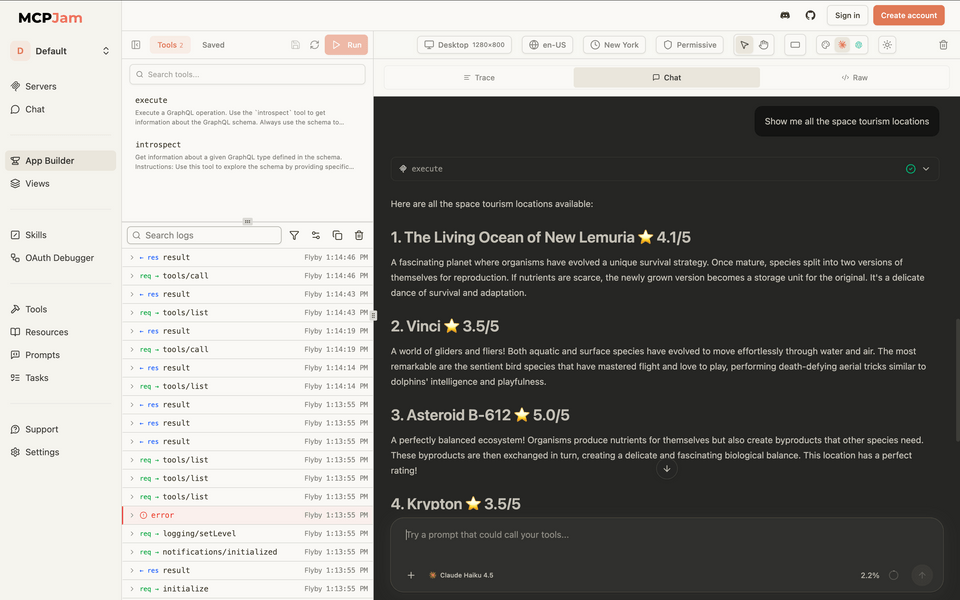
executeandintrospect.The chat defaults to a Claude emulator. Ask it questions about the schema and you'll get text-only responses.
- "What data is available in my graph?"
- "Show me all the space tourism locations"
- "Tell me more about Krypton"
Explore the logs which shows the requests and results from the MCP server. You can also dig into each detail of the tool call.
Up next
Text answers are useful, but you already invested in a UI! Let's dive into MCP Apps and see how we can display our UI in the chat window.