Follow-along: Explore the schema
The Query.products Connector
Open up the
products.graphqlfile.At the top of the file, you'll find the code that enables Connectors in this schema.
products.graphqlextend schema@link( # Enable this schema to use Apollo Federation featuresurl: "https://specs.apollo.dev/federation/v2.11")@link( # Enable this schema to use Apollo Connectorsurl: "https://specs.apollo.dev/connect/v0.2"import: ["@connect", "@source"])@source(name: "ecomm"# A @source directive defines a shared data source for multiple Connectors.http: {baseURL: "https://ecommerce.demo-api.apollo.dev/"headers: [# If your API requires headers, add them here and in your router.yaml file.# Example:# { name: "name", value: "{$config.apiKey}" }]})Find the
Query.productsfield, where the Connector has been defined already.products.graphqltype Query {products: [Product]@connect(source: "ecomm"http: { GET: "/products" }selection: """$.products {idnamedescription}""")}Go to http://localhost:4000 where the local router is running. Build a query using Explorer.
GraphQL operationquery GetProducts {products {idnamedescription}}You should get data back! 🎉
And not a single line of resolver code was written!
Examining Connectors using the Connectors Debugger
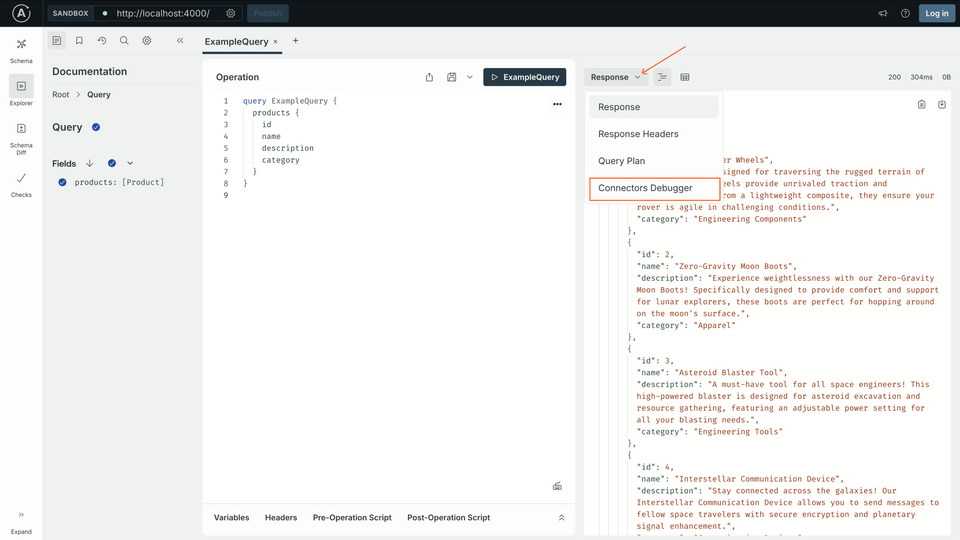
Click on the arrow beside Response (or Query Plan) and select Connectors Debugger.
Select the only network request call on the list to see more details.
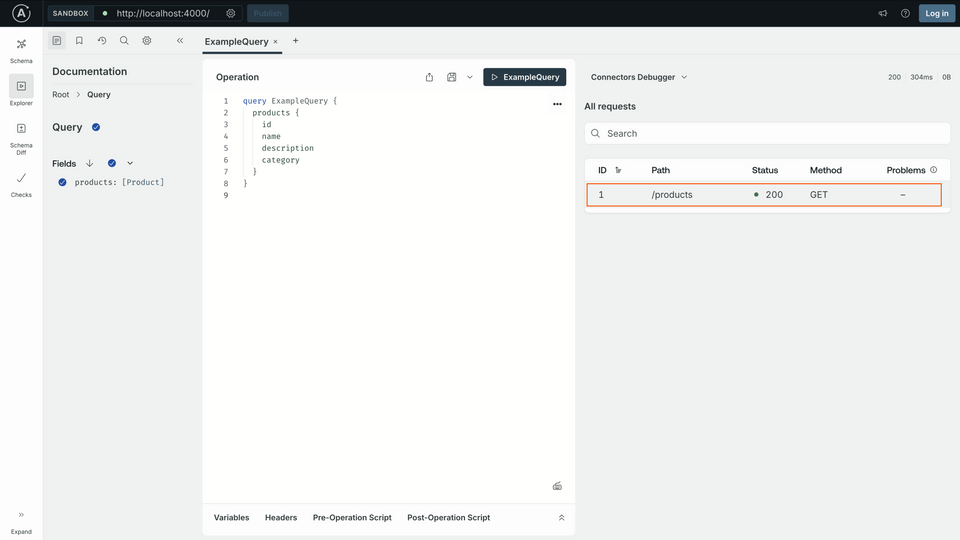
Explore the different tabs for Request, Response and Problems.

You can see the raw response from the REST API endpoint in the Response tab.
You can see the request that was made to the REST API endpoint in the Request tab.
You can see any problems with the Connector in the Problems tab.
Follow-along: Add category
Let's take a closer look at the REST API endpoint response where the list of products is coming from: https://ecommerce.demo-api.apollo.dev/products. We want to expose the product's category in our GraphQL schema.
Add
categoryto theselectionproperty of theQuery.productsConnector.products.graphqltype Query {products: [Product]@connect(source: "ecomm"http: { GET: "/products" }selection: """$.products {idnamedescriptioncategory}""")}Save your changes; a composition error will pop up.
Composition errorerror[E029]: Encountered 1 build error while trying to build a supergraph.Caused by:SELECTED_FIELD_NOT_FOUND: [products] `@connect(selection:)` on `Query.products` contains field `category`, which does not exist on `Product`.If you're using an Apollo IDE extension, you won't need to save your changes to see the error, you can hover over the red squiggly line for
categoryand read the error!Add a
categoryfield to theProducttype to fix the error.products.graphqltype Product {id: ID!name: Stringdescription: Stringcategory: String}Save your changes.
rover devwill restart.Go to http://localhost:4000 where the local router is running. Add the
categoryfield to the existing query.GraphQL operationquery GetProducts {products {idnamedescriptioncategory}}You should get data back! 🎉