⚠️ Important note
This workshop companion was designed to be used alongside an instructor for the Torc Community. If you would like to learn on your own time at your own pace, check out the Odyssey course instead: Agentic GraphQL: MCP for the Enterprise
Overview
Agentic AI unlocks powerful new capabilities, but with that power comes new risks. Without the right safeguards, these systems can expose sensitive data, execute unvetted logic, or become unpredictable. In this workshop, you'll take an existing MCP Server and learn best practices on how to secure it. You'll use authentication and schema directives to give your AI assistants the structure and guardrails they need to be helpful, without going rogue and DDOS-ing your systems.
What you'll do
- Set up authentication with the Apollo MCP Server
- Explore the different ways of restricting access to your data with schema directives using Apollo GraphOS
Who this workshop is for
Anyone looking to implement AI agents in their organization.
Pre-requisites
Basic experience with the Apollo MCP Server
Let's get set up!
Clone the repository
In your terminal, run the following command to clone the repository.
git clone https://github.com/AmandaApollo/torc-mcp-auth.git
Install IDE extension
This project comes with configuration for the Apollo VSCode extension to provide developer tooling. You will be prompted to install the extension automatically when you open the project in VSCode.
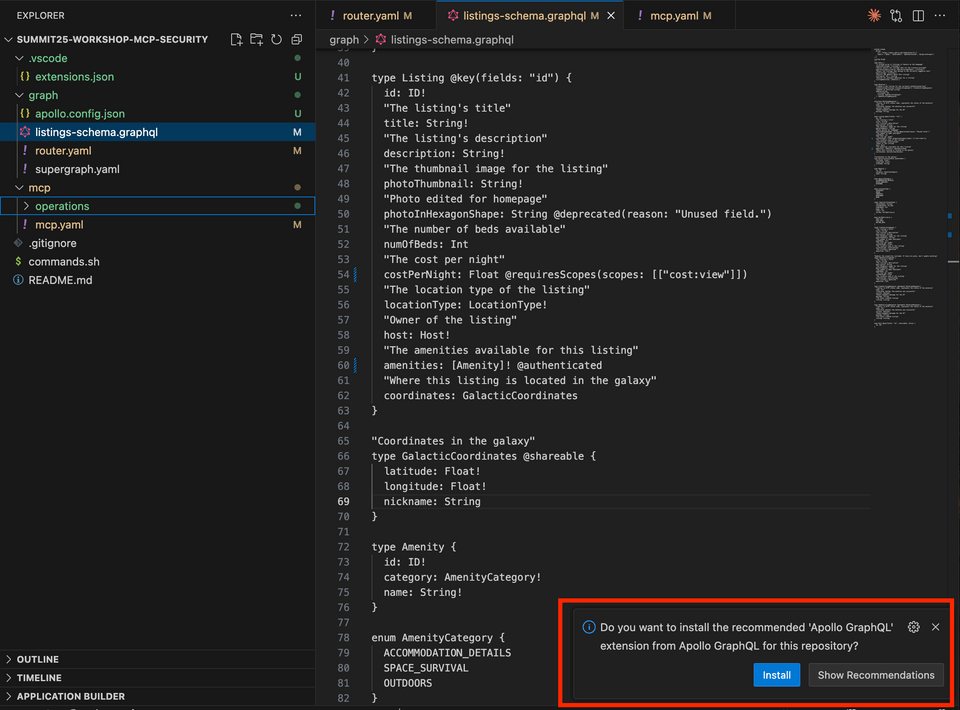
If you are working in another IDE, visit the documentation for instructions on IDE support and installation options for developer tools.
Install the Rover CLI
Note: This workshop uses Rover 0.x. Rover 1.0 changed some commands (for example, rover auth login replaces rover config auth, and rover plugin install replaces rover install --plugin). To follow along exactly, install Rover v0.41.0:
- Linux / Mac OS:
curl -sSL https://rover.apollo.dev/nix/v0.41.0 | sh - Windows PowerShell:
iwr 'https://rover.apollo.dev/win/v0.41.0' | iex
You need at least Rover version v0.35.0 to complete the workshop.
Open up a terminal and run the install command that suits your computer's environment:
For Linux / Mac OS:
curl -sSL https://rover.apollo.dev/nix/latest | shFor Windows PowerShell installer
iwr 'https://rover.apollo.dev/win/latest' | iexNote: You can find other installation methods in the Apollo documentation.
Verify that the installation completed successfully by running
roveranywhere in the terminal.If it outputs a list of options and subcommands for using Rover, great! The CLI is installed and ready to go.
Download Claude Desktop
We'll be using Claude Desktop as our AI agent or LLM for this workshop.
Download and install it from Claude's official website.