Follow-along: Generate a graph (⏳ 25 min)
Goal: Use an agent and mcp tools to orchestrate two REST APIs into one graphql schema.
Create the schema for Space Devs
We've provided a JSON file with the Space Devs Launch Library API endpoint, located in the LaunchLibraryAPI.json file in the local project.
Open up goose and enter the following prompt to create the schema for Space Devs using the LaunchLibraryAPI.json file.
I just started a new graph with Apollo, I'm providing the endpoint for the Space Devs Launch Library at LaunchLibraryAPI.json in the local folder. I want to get the only the important details with fields for launches. Pad information must be included with lat/long values.The agent will prompt you to confirm the plan. It will commonly ask if you want the use the spacedevs development endpoint and if you want your schema in one file. Answer yes to both.
Navigate to http://localhost:4000/ where the Explorer is running.
Create a query using the + buttons in the Documentation panel.
Below is an example, the agent may have structured your schema slightly differently.
 Example queryquery UpcomingLaunches($limit: Int) {upcomingLaunches(limit: $limit) {idnamepad {latitudelongitude}}}
Integrate Open Weather API
In goose, enter the following prompt to integrate the Open Weather API into the schema.
Add a field-level connector on Pad.weather. Use the open weather endpoint and the OPEN_WEATHER_KEY in the env file to research and understand this API https://api.openweathermap.org/data/2.5/weather?lat={lat}&lon={lon}&appid={OPEN_WEATHER_KEY}⚠️ Warning: Using
.envfiles when working with agents can expose your keys. This flow is not to be used for sensitive data.Navigate back to http://localhost:4000/ and your new API fields will have hot-reloaded.
Add
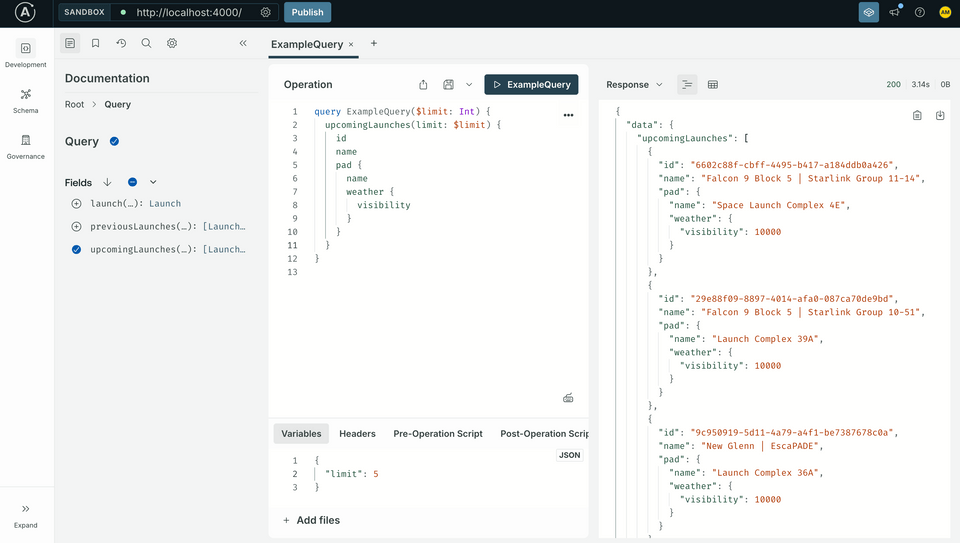
weatherto the query and click Run again to test.Example queryquery UpcomingLaunches($limit: Int) {upcomingLaunches(limit: $limit) {idnamepad {weather {visibility}}}}
Explore the graph
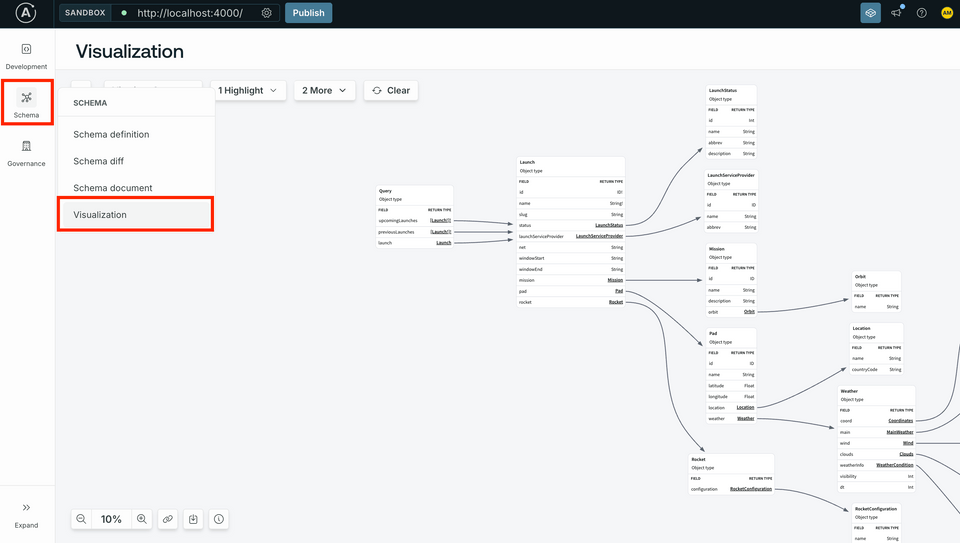
In the http://localhost:4000/ Sandbox, click on the Schema icon in the left hand navigation.
Click on the Visualization tab. This view allows you to see the graph view of your schema structure including how everything is connected. This is another tool that can help you validate your agentic output.
💭 Tips
This project has an Agents.md and a .goosehints file that help us give our LLM a "persona" on building a graph using Apollo Connectors. Prompting with words like "Generate me a connector for..." help increase the vector search hits with our GraphOS MCP tools.
Here are some tips we used in creating these prompts: