Overview
In this beginner-friendly session, you'll get hands-on with the Model Context Protocol (MCP) and Apollo's MCP Server to enable assistants like Claude or ChatGPT to safely interact with your internal systems. Learn how to expose secure, task-specific tools that let your assistant operate independently while you stay in control.
What you'll do
- Generate a GraphQL schema from REST API endpoints using GraphOS MCP tools and Goose
- Set up Apollo MCP Server to connect AI assistants to your backend services
- Build MCP tools easily with GraphQL operations
- Test AI assistants executing real actions through connected tools
Who this workshop is for:
- Developers and teams looking to integrate AI agents into real workflows.
Pre-requisites:
- Basic experience with APIs and AI Agents.
⚠️ Important note
This workshop companion is designed to be used alongside an instructor for the Torc Community. If you would like to learn on your own time at your own pace, check out the Odyssey courses about MCP and Connectors instead.
Let's get set up!
- Clone and configure the repository
- Download and configure Goose CLI
- Configure tools and extensions in Goose
- Install the Rover CLI
Clone the repository
In your terminal, run the following command to clone the repository.
git clone https://github.com/AmandaApollo/torc-mcp-workshop.git
Open it up in your favorite code editor.
Generate your OpenWeather key
The Open Weather API provides free access to its current weather API. To generate an API key, you must sign up for an account.
Navigate to the signup page and fill out the form.
You will be prompted to state your use of the API. You can choose education or other for purpose.
Confirm your email.
Click the dropdown second from the right in the top navigation > select
My API keys.Copy the generated default key here and add it to your
.envfile asOPEN_WEATHER_KEY..envOPEN_WEATHER_KEY=<YOUR_OPEN_WEATHER_KEY>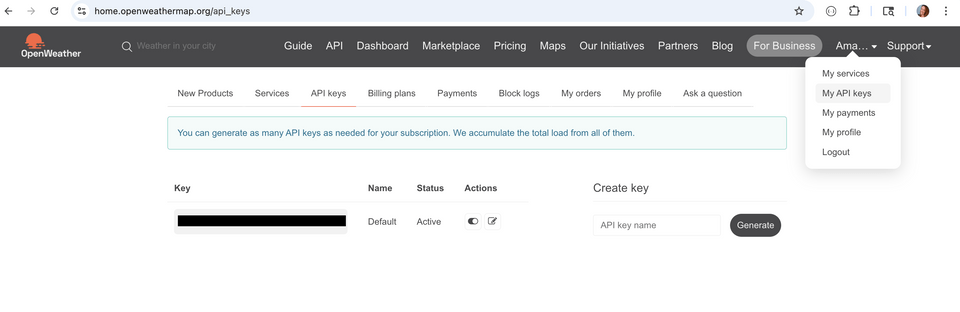
Download and configure Goose CLI with OpenRouter
We'll be using Goose CLI as our AI agent for development of your graph.
Follow the Installations guide on Block's official website. You'll either install via download script or via Homebrew.
If you already have Goose installed, run goose update.
Tip: When goose prompts you to enter your password after installation and on running, make sure to check Always Allow.
Provider Note
This workshop was designed using claude-sonnet-4 as recommended by goose. The live workshop provided credits via Open Router for this configuration. Please configure the provider you have access to noting that different models may affect the performance.
This workshop has also been tested using Claude Code. If you prefer to use Claude Code, rename the Agents.md file in the starter repo to CLAUDE.md and follow the instructions for setting up streamable HTTP MCP servers in the Claude code documentation.
Configure OpenRouter in Goose
Next, we'll configure OpenRouter as our LLM provider in Goose.
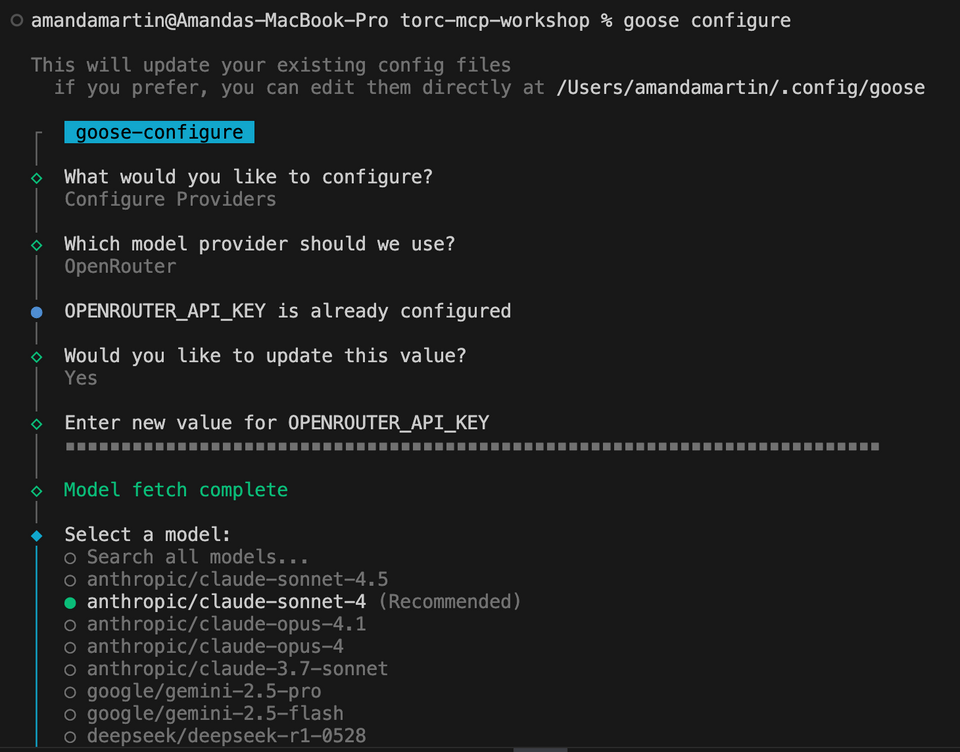
- Run
goose configure. - Select
Configure Providers. - Select
OpenRouter. - Paste your provisioned OpenRouter API key.
- Select
anthropic/claude-sonnet-4as your model. - Use the default timeout.
- Leave the headers and other values as the defaults.
Configure GraphOS MCP tools and Built-In Extensions in Goose
In Goose, MCP servers are called extensions.
For this workshop you will add an extension for the GraphOS MCP tools and configure some of the default extensions in Goose.
Add default goose extensions (if you have never used goose extensions before)
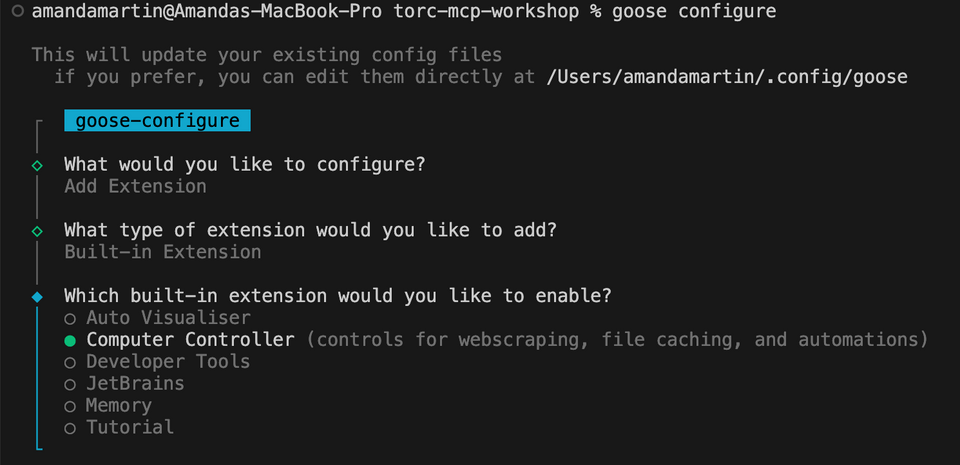
- Run
goose configure. - Select
Add Extension (Connect to a new extension). - Select
Built-in Extension (Use an extension that comes with goose). - Select
computercontroller - Use the default timeout
- Repeat these steps to add the
developerextension.
Add the GraphOS MCP tools extension
Run
goose configure.Select
Add Extension (Connect to a new extension).Select
Remote Extension (Streaming HTTP).Name the extension
graphos-mcp-tools.graphos-mcp-toolsAdd the URL:
https://mcp.apollographql.com.https://mcp.apollographql.comUse the default timeout.
We are not using headers
Other values can be whatever you like or the defaults.
Toggle active extensions
- Run
goose configure. - Select
Toggle Extensions. - Ensure that
computercontroller,developer, andgraphos-mcp-toolsare active. All other extensions can be toggled off.
Install the Rover CLI
You need at least Rover version v0.35.0 to complete the workshop.
Open up a terminal and run the install command that suits your computer's environment:
For Linux / Mac OS:
curl -sSL https://rover.apollo.dev/nix/latest | shFor Windows PowerShell installer
iwr 'https://rover.apollo.dev/win/latest' | iexNote: You can find other installation methods in the Apollo documentation.
Verify that the installation completed successfully by running
roveranywhere in the terminal.If it outputs a list of options and subcommands for using Rover, great! The CLI is installed and ready to go.